
PDF Form Filler
Type into a PDF form's fields, tick its boxes and download the filled copy, without uploading it.
Runs entirely in your browser. Your files are never uploaded.
or drop it anywhere in this box
It never leaves your computer.
PDF Form Filler at a glance
- Price
- Free
- Files uploaded
- None, it runs in your browser
- Sign-up
- Not needed
- Fields
- Text, checkbox, radio, drop-down, list
- Output
- Filled PDF, editable or flattened
- Password
- Opened with it on your device
How to use PDF Form Filler
- Open the formPress Choose a PDF form or drop the form into the box. The pages appear with the fields outlined in blue; a locked form asks for its password here.
- Fill it inClick a field and type, tick the boxes and choose from the lists. Press Tab or Enter to move to the next field, or Next empty field to jump to one you missed.
- DownloadTick Flatten if the answers must not be changed later, then press Download filled PDF.
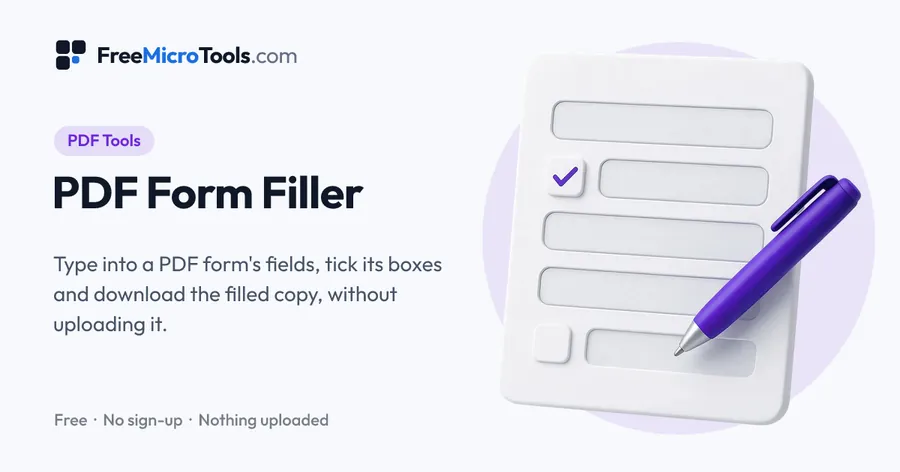
Open a fillable PDF form and the fields appear on the pages exactly where they are printed: type into the text boxes, tick the checkboxes, pick from the drop-down lists and press Tab or Enter to move on. Download the filled copy, which any PDF reader opens with the answers still editable, or tick Flatten first so the answers become part of the pages and cannot be changed. Forms with a password are opened with it on your device. The PDF, what you type and the filled copy never leave your computer.
How it works
PDF Form Filler is a web page that does its work on your own device. The file you choose is opened by your browser, changed there and saved from there; it is never sent to a server, so there is no copy of it anywhere to delete, no queue and no waiting for an upload. Most online tools of this kind send your file to their servers and work on it there, and many keep it for a while. This one does not. There is no account, no watermark and no limit on how often you use it, and the result downloads the moment it is ready.
Straight to one job
Fields where the form prints them
A fillable PDF carries its fields as part of the file: each one has a place on a page, a type and, often, a name that says what belongs in it. This tool reads those fields and lays an input over each one, on top of the page drawn at the size of your screen, so you fill the form the way it was designed rather than working down a list of field names. A field that appears on several pages, such as a name repeated in a header, is one field, and typing in one copy fills the others.
Editable or flattened
By default the filled copy keeps its fields, so the answers can still be changed in any PDF reader, and the form can be opened here again to carry on. Ticking Flatten draws the answers into the pages and removes the fields: the result displays and prints the same everywhere and cannot be edited or cleared, which is what most forms being submitted should be. Keep the unflattened copy if you may need to change something later.
Locked forms
A form that asks for a password is opened with it on your device, and a form that opens freely but is marked as restricted is opened without one; the password program used for this is downloaded from our own site the first time it is needed. The filled copy is saved without encryption, so it opens anywhere; use Protect PDF to lock it again.
What this tool does not do
- It does not add fields to a flat PDF. For a scanned or printed form, Sign PDF places text, dates, initials and a signature anywhere on a page.
- It does not sign. Signature fields are shown, and the filled copy can be signed in Sign PDF afterwards.
- It does not fill XFA forms, the Adobe LiveCycle kind that only Adobe Reader can handle; it says so when it meets one.
- It does not run scripts a form may contain, so calculated fields and validation rules do not fire; type the totals yourself.
What it does
- Fields shown on the page where they belong, at any screen size
- Text boxes, multi-line boxes, checkboxes, radio buttons, drop-downs and lists
- Next empty field, Clear all, and Enter to move to the next box
- Flatten, so the answers become plain page content
- Forms with a password open with it, on your device
- Fields that appear on several pages are filled together
- No upload, no account, no watermark
Questions
Is my form uploaded?
No. The form is read, shown and filled by code running in your browser on your own device. Neither the file nor what you type is sent to us or to anyone else, and nothing is stored.
How do I fill in a PDF form?
Open the form here, click a blue field and type. Checkboxes tick with a click, drop-downs open a list, and Tab or Enter moves to the next field. Press Download filled PDF when you are done.
What does Flatten do?
It turns the fields into ordinary page content, so the answers print and display everywhere exactly as you see them and cannot be edited or cleared. Use it for a form you are submitting; leave it off if someone else still has to add to the form.
The PDF has no fields. Can I still type on it?
This tool fills forms that have fillable fields. For a flat PDF, such as a scanned or printed form, use Sign PDF, which lets you place text, a date, initials and a signature anywhere on any page.
Can I sign the form here?
Signature fields are shown but not filled here. Fill the rest of the form, download it, then open the filled copy in Sign PDF to draw or type your signature in the signature box.
Why does my text look different from the form's font?
Answers are drawn with a standard PDF font so they open the same in every reader. Text in a script that font cannot draw, such as Hindi or Chinese, is still saved; PDF readers then draw it themselves, and the file is not flattened.
Does it work with forms from government sites?
Yes, with any ordinary fillable PDF (an AcroForm). A few forms, mostly older ones from Adobe LiveCycle, are XFA forms that only Adobe Reader can fill; the tool tells you when it meets one.
Is it free?
Yes, completely free, with no sign-up, no watermark and no limit on forms or fields.
More
More PDF tools
See all →
Merge PDF
PDF ToolsCombine PDF files into one, in the order you want, without uploading them.

Compress PDF
PDF ToolsReduce PDF file size without uploading it anywhere.

Split PDF
PDF ToolsExtract pages or split a PDF into separate files, without uploading it.