
Image to Text
Copy the text out of a photo, screenshot or scanned PDF.
Works in your browser. Your pictures are never uploaded.
or drop them here, or paste a screenshot with Ctrl+V
JPG, PNG, WebP, HEIC, GIF, BMP and scanned PDFs. Read on your device, never uploaded.
Image to Text at a glance
- Price
- Free
- Files sent to us
- None, read on your device
- Sign-up
- Not needed
- Reads
- JPG, PNG, WebP, HEIC, GIF, BMP, scanned PDF
- Languages
- English, Spanish, French, German, Portuguese, Italian, Hindi
- Gives
- Plain text to copy or download
How to use Image to Text
- Add the pictureChoose or drop pictures or a scanned PDF, or paste a screenshot with Ctrl+V.
- Pick the languageEnglish is set. Choose the language the text is written in if it is another.
- Copy the textCheck the text, then copy it or download it as a TXT file.
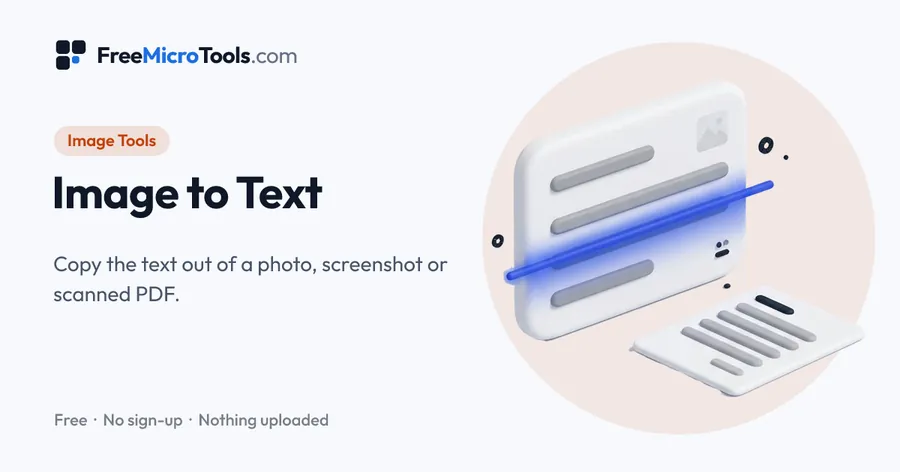
Drop in a photo, a screenshot or a scanned PDF, or paste a screenshot straight from the clipboard, and get the words as text you can copy, edit and save. The reader runs on your own device, reads English, Spanish, French, German, Portuguese, Italian and Hindi, and handles JPG, PNG, WebP, HEIC and multi-page scanned PDFs, many files at once.
How it works
Image to Text is a web page that does its work on your own device. The file you choose is opened by your browser, changed there and saved from there; it is never sent to a server, so there is no copy of it anywhere to delete, no queue and no waiting for an upload. Most online tools of this kind send your file to their servers and work on it there, and many keep it for a while. This one does not. There is no account, no watermark and no limit on how often you use it, and the result downloads the moment it is ready.
Straight to one job
Extract Text From Image · JPG to Text · Screenshot to Text
How it reads the text
The page loads a text-recognition engine into your browser the first time you use it, about 7 MB including English, and then reads each picture on your own device. It finds the lines of text, then reads each line with a neural network trained on printed text in that language. Nothing is uploaded: once the reader is ready you can go offline and it still works.
Getting the best result
| Picture | What to expect |
|---|---|
| Screenshot of a web page, app or PDF | Very good: sharp, straight, high contrast |
| Scan of a printed page | Very good at 300 dpi, good at 200 dpi |
| Phone photo of a page | Good when flat, in focus and evenly lit |
| Text on a sign, label or product | Fair: curved or angled text is harder |
| Handwriting | Poor: the reader is trained on printed text |
Pick the language the text is written in: the reader uses it to know which letters and words to expect. For a page that mixes two languages, pick a pair, such as English and Spanish. Small screenshots are enlarged before reading, which helps with tiny type. Check names, numbers and codes by eye before you use them.
Scanned PDFs
A PDF made by a scanner or a phone app holds pictures of pages, not text, so copying from it gives nothing. Drop the PDF here and each page is drawn at print resolution and read, up to 50 pages at a time. For a PDF you can already select text in, PDF to Text is faster and exact.
What it does
- Photos, screenshots and scanned PDFs
- Paste a screenshot with Ctrl+V
- English and six more languages
- Many pictures at once
- Join lines into paragraphs
- Copy or download as a text file
Questions
How do I copy text from a picture?
Drop the picture into the box, or paste a screenshot with Ctrl+V. The words appear below as plain text, ready to copy or download.
Are my pictures uploaded?
No. The reader runs in your browser on your own device, so the pictures and the text never leave it.
Can it read a scanned PDF?
Yes. Each page is drawn at print resolution and read, up to 50 pages at a time.
Can it read handwriting?
Only very neat block letters, and not reliably. It is trained on printed and on-screen text.
Which languages can it read?
English, Spanish, French, German, Portuguese, Italian and Hindi, plus English mixed with Spanish or Hindi.
Why is some text wrong?
Blur, glare, small type, curved pages and fancy fonts cause mistakes. A sharper, flatter, evenly lit picture fixes most of them.
More
More Image tools
See all →
Passport Photo Maker
Image ToolsCrop your own picture to passport size, with a head guide and print sheets.
Exam Photo and Signature Resizer
Image ToolsGet your photo and signature within the exact KB and pixel limits of an exam form.
HEIC to JPG Converter
Image ToolsTurn iPhone HEIC photos into JPG files that open and upload anywhere.