
Rotate and Flip Image
Turn or mirror photos that came out the wrong way, several at once, without uploading them.
Runs entirely in your browser. Your files are never uploaded.
or drop them anywhere in this box
JPG, PNG, WebP, GIF, AVIF or BMP, one or many. They never leave your device.
Rotate and Flip Image at a glance
- Price
- Free
- Files uploaded
- None, it runs in your browser
- Sign-up
- Not needed
- Turns
- 90° left or right, 180°, flip horizontal, flip vertical
- Batch
- Yes, any number of images, ZIP download
- Saves
- JPG, PNG or WebP
- Watermark
- None
How to use Rotate and Flip Image
- Choose your imagesPress Choose images or drop them into the box. They open in your browser and are not uploaded.
- Turn or flipPress Left 90°, Right 90°, 180°, Flip horizontal or Flip vertical to change every image, or use the small buttons on one image. The preview shows the result.
- DownloadPress Download on an image, or Download all (ZIP) for every image. Choose Save as first if you want a different format.
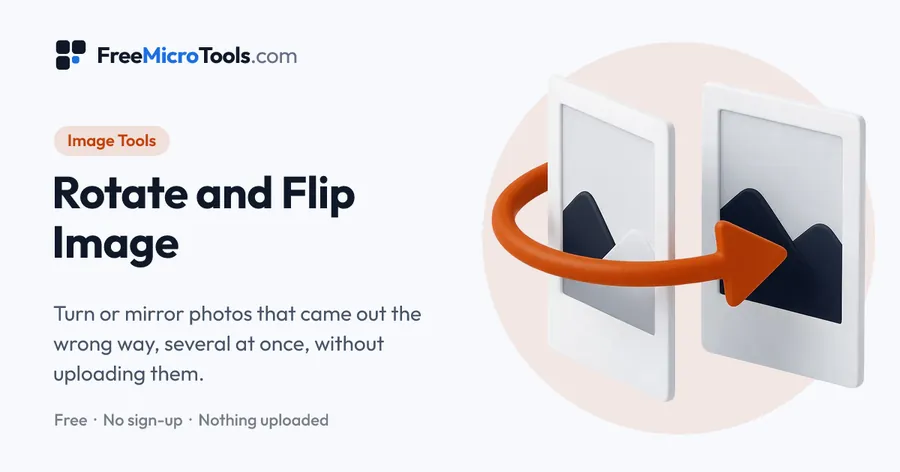
Drop in one photo or a whole folder, turn them left or right by 90 degrees or by 180, flip them horizontally or vertically, and download them one by one or all together in a ZIP. Every image shows a live preview of its turn, and each one can be turned on its own or all of them at once. The saved picture is really turned, not just labelled, so it opens the right way up in every app. Save as the original format, or as JPG, PNG or WebP. It all happens in your browser, so nothing is uploaded.
How it works
Rotate and Flip Image is a web page that does its work on your own device. The file you choose is opened by your browser, changed there and saved from there; it is never sent to a server, so there is no copy of it anywhere to delete, no queue and no waiting for an upload. Most online tools of this kind send your file to their servers and work on it there, and many keep it for a while. This one does not. There is no account, no watermark and no limit on how often you use it, and the result downloads the moment it is ready.
Straight to one job
Why photos come out the wrong way
A phone camera always records the picture the same way round and adds a note saying how the phone was held. Most photo apps read the note and show the picture upright; some web uploaders, older programs and email previews ignore it, so the same photo appears sideways there. Turning the photo here writes a new picture that is genuinely upright, with no note to misread, so it looks the same everywhere.
Selfies are a separate case. Front cameras show you a mirror image while you frame the shot, and some phones save it that way, so writing on a T-shirt reads backwards. A horizontal flip puts it right. Scanners and document apps sometimes produce pages upside down, which a 180 degree turn fixes in one press for the whole batch.
Turning many at once
The buttons at the top apply to every image on the list, and the small buttons on each row apply to that image alone, so a batch where most pictures need a right turn and two need a left turn takes three presses. Each row shows the turn in words and a preview, and Undo all returns everything to how it came in. Download all packs the whole batch into one ZIP with the original names kept, plus a word saying what was done.
What this tool does not do
- It does not straighten by a small angle. That needs a crop to hide the empty corners and is a different job.
- It does not keep the hidden details a phone writes into a photo, such as the place it was taken. The saved picture is a fresh file with none of them.
- Animated GIFs are saved as a single still frame.
What it does
- Turn left or right 90 degrees, or 180 degrees, and flip horizontally or vertically
- One image or many at once, each with its own live preview
- Turn every image together, or one at a time
- Really rotated, not just relabelled: opens the right way up everywhere
- Save as the original format, or as JPG, PNG or WebP, with a quality slider
- Download each image, or all of them in one ZIP
- Nothing is uploaded and no watermark is added
Questions
Are my photos uploaded?
No. The photos are opened, turned and saved by your browser on your own device. They are never sent to us or to anyone else, and nothing is stored.
Does rotating reduce the quality?
Turning by 90 or 180 degrees or flipping moves pixels without changing them. Saving as JPG or WebP re-encodes the picture, which at the default quality of 92 is not visible; choose PNG when every pixel must stay identical.
Why does my phone photo look upright here but sideways elsewhere?
Phone cameras often save the picture sideways with a note saying which way to show it. Some apps read the note and some do not. This tool shows the photo the way the note says and saves it really turned, without the note, so every app agrees.
What is the difference between flip and rotate?
Rotating turns the picture like a sheet of paper on a desk. Flipping mirrors it, as if seen in a mirror: text reads backwards and left becomes right. Selfie cameras often mirror the picture, and a horizontal flip puts it back.
Can I turn only some of the images?
Yes. The buttons at the top change every image; the small buttons on each row change only that image. Undo all puts every image back as it was.
Can I rotate by a small angle, such as 5 degrees, to straighten a photo?
Not here. This tool turns by whole quarters and flips, which keeps every pixel exact. Straightening by a few degrees needs a crop as well, and is not offered yet.
How do I rotate a PDF?
Use Rotate PDF, which turns pages without redrawing them.
Is it free?
Yes, completely free, with no sign-up, no watermark and no limit.
More
More Image tools
See all →
Passport Photo Maker
Image ToolsCrop your own picture to passport size, with a head guide and print sheets.
Exam Photo and Signature Resizer
Image ToolsGet your photo and signature within the exact KB and pixel limits of an exam form.
HEIC to JPG Converter
Image ToolsTurn iPhone HEIC photos into JPG files that open and upload anywhere.